
The Question We Get Often
People open the appRules SmartPrompt Builder expecting a text box, and find a purpose-built environment for writing prompts: a toolbar, tables, images, colored context chips and a settings panel, all on an HTML foundation. So we get asked, often: why is the SmartPrompt Builder HTML-based?
The short answer is that in an enterprise workflow, a prompt is not a sentence typed into a chat window. It is a working document: instructions, rules, examples, live data from your systems, and a destination for the result. Documents need a real environment, and HTML is the natural format for one. The SmartPrompt Builder is a purpose-built, HTML-based prompt editor: HTML is how the prompt is written and stored, and everything else in it, from context chips to output formats, exists for prompts.
In an enterprise workflow, a prompt is a template, not a sentence.
Prompts Are Documents, Not Sentences
Look at a prompt that does real work. It sets a role, states rules, shows an example of the output you expect, supplies the data to work on, and says what shape the answer must take. Written as one unbroken block of text, it is hard to write, hard to review, and easy to break.
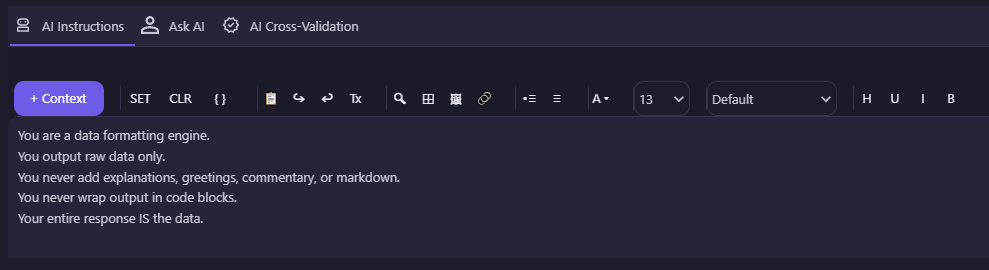
So the SmartPrompt Builder gives prompt authors what every other kind of business document already has: bold, italic, underline and highlight; bulleted and numbered lists; font size and color; tables; links; images; undo and redo; and spell check. Instructions and the prompt itself each get their own editor, so the standing rules stay apart from the question being asked.
Structure helps the reader of the prompt, and it helps the model. Model vendors’ own prompting guides recommend clearly separating instructions from the data they operate on, often with tags or markup, and many practitioners note that models handle tagged structure well because so much of their training data is markup. The idea is spreading in the enterprise too. A recent CIO.com opinion piece by Eamonn O’Neill of Lemongrass argues that structured prompt markup brings more predictable behavior, reusable components, templates with swappable variables, and chained prompts.
Here is what that structure buys you, and how the SmartPrompt Builder delivers it:
Clear Boundaries
Instructions are text. Live data is a chip. You can see at a glance which parts of a prompt are fixed and which are filled in from the workflow, so nobody has to guess where the data ends and the instructions begin.
Dynamic Templates
Write the prompt once and run it across every record the workflow processes. Each chip is replaced with that record’s values at run time, so there is no copying and no rewriting.
Reusable Building Blocks
Saved SmartPrompts, like saved Conditions and Actions, plug into the workflows and chains you build, so the work you put into a good prompt keeps paying off.
Chaining
Chips such as AI Query Result and Condition Result let one step’s output become part of the next step’s prompt, which is how multi-step workflows are built.
Structure helps, but it is not a guardrail on its own. A rule written in a prompt is still only a request to the model. The guardrails in appRules are Conditions, Actions, controlled vocabularies and logging, which work around the prompt. More on that below.
Context Chips: Live Data Inside the Words
The + Context button opens the Context Picker, where you choose what the prompt needs from the running workflow. Pick one, and it lands in the prompt as a colored chip.
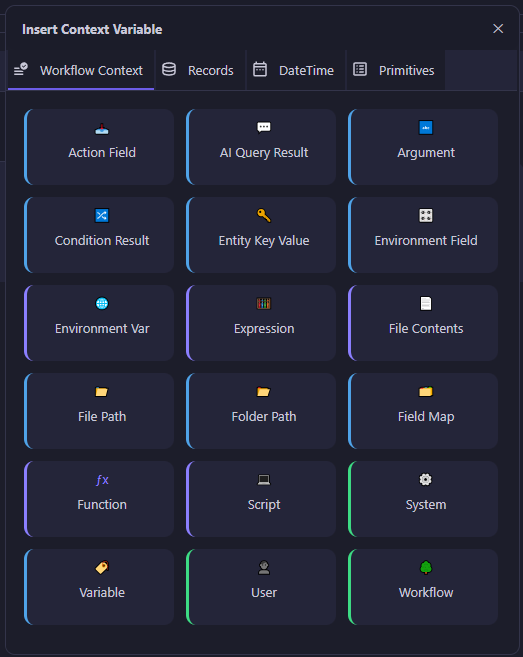
Chips are atomic. A chip can’t be half-deleted or mistyped, it stays intact as the author edits the words around it, and double-clicking it reopens the picker to change it. Select some text and the { } button turns it into a context variable. The picker offers 36 context types across four tabs (Workflow Context, Records, DateTime and Primitives), and every variable maps to a real source. See the Context Picker.
This is where a purpose-built prompt editor earns its keep. Plain text can’t show the difference between a word and a live value. A chip can.
One Prompt, Thirteen Outputs
Here is the idea that surprises people most. What you author and what you send are two separate decisions. You write the prompt once, in the prompt editor. Then the Output Format setting decides what actually goes out, because the right format depends on where the prompt is going.
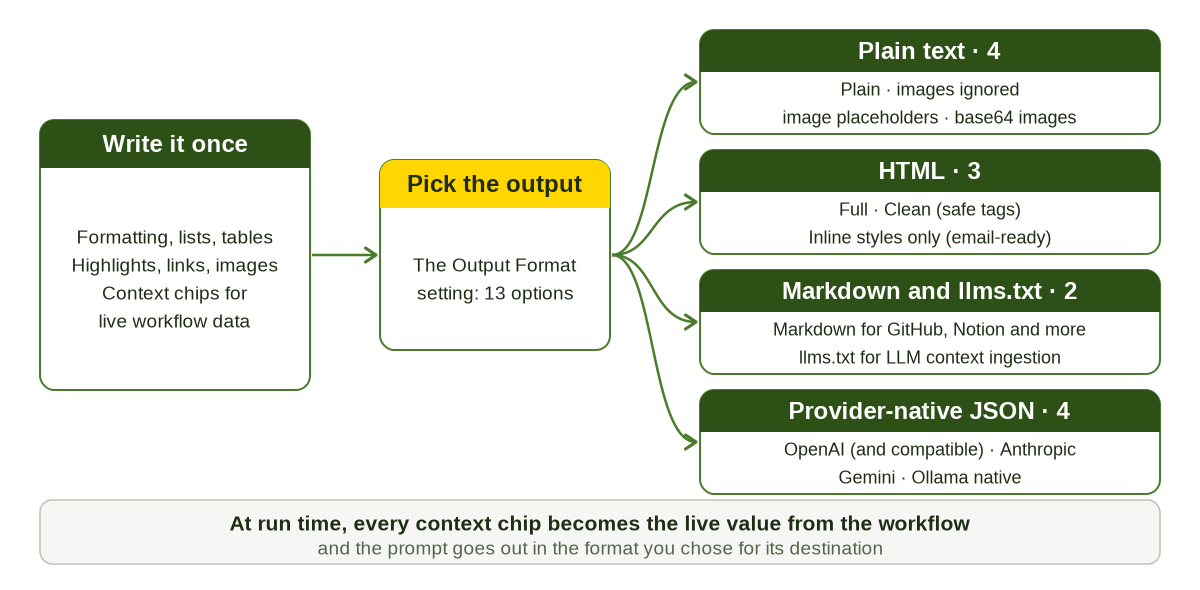
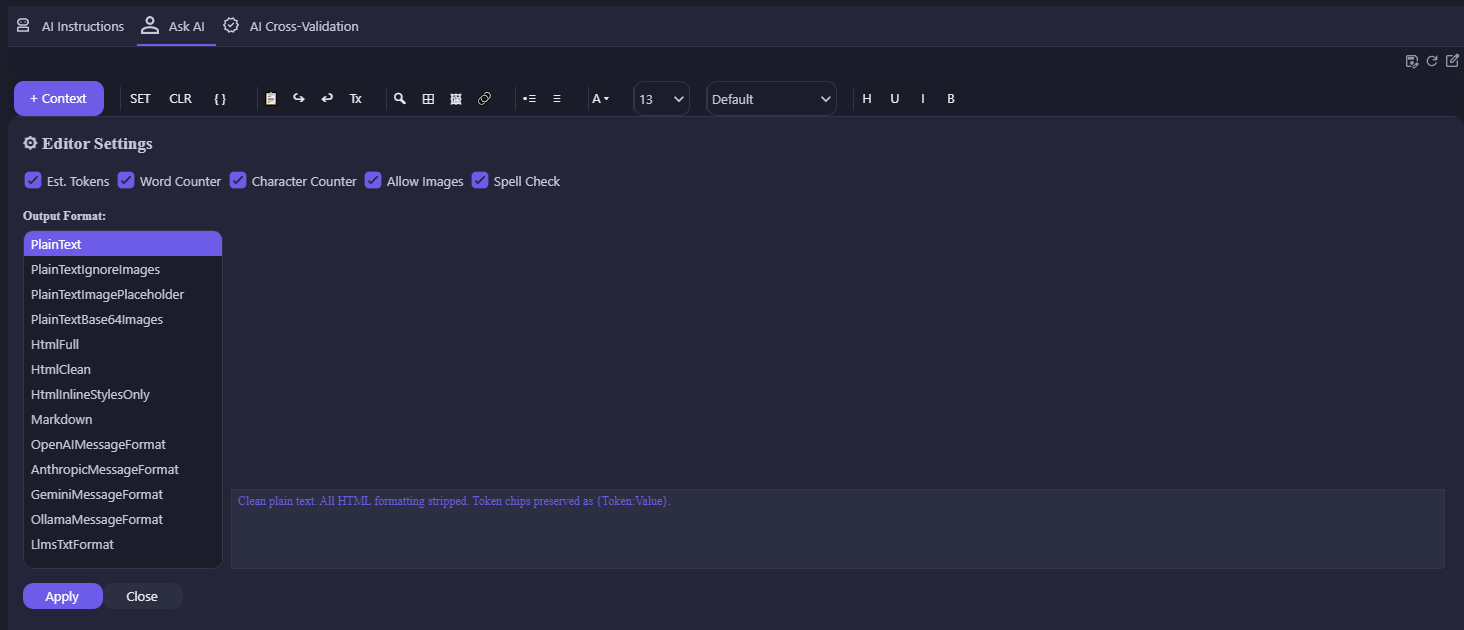
The thirteen options fall into four families:
| Output Format | What you get | Good for |
|---|---|---|
| Plain text | ||
| PlainText | Clean text with all formatting stripped. Chips are kept as {Token:Value}. | The default for most prompts |
| PlainTextIgnoreImages | Plain text with images silently removed. | Text-only AI providers |
| PlainTextImagePlaceholder | Plain text with images replaced by [Image:1], [Image:2] and so on. | Logging |
| PlainTextBase64Images | Plain text with base64 image tags kept inline. | Custom parsers that need full fidelity |
| HTML | ||
| HtmlFull | The full HTML exactly as stored in the editor. | HTML email and rich content |
| HtmlClean | HTML with scripts and event attributes stripped. | Embedding in web pages |
| HtmlInlineStylesOnly | HTML with CSS classes removed and inline styles only. | Email clients |
| Markdown | ||
| Markdown | Bold, italic, lists and highlights converted to Markdown syntax. | GitHub, Notion and other Markdown tools |
| LlmsTxtFormat | Clean Markdown following the llms.txt convention, with images as [Image N: alt] placeholders. | Feeding documents to an LLM as context |
| Provider-native JSON | ||
| OpenAIMessageFormat | A JSON parts array for the OpenAI vision API. | OpenAI, plus OpenRouter, Hugging Face TGI and Ollama’s /v1/ endpoint |
| AnthropicMessageFormat | A JSON parts array for the Anthropic Claude vision API, with base64 and URL images. | Anthropic models |
| GeminiMessageFormat | Google Gemini contents and parts, with inline and file image parts. | Google models |
| OllamaMessageFormat | Ollama’s native chat format, with a separate images array. | Ollama’s native API |
That is why the SmartPrompt Builder is built on HTML. The author gets one comfortable place to write. The destination gets exactly what it expects, whether that is lean text for a quick classification, a vision-ready message for a document with images, or clean HTML for an email that goes out at the end of a workflow. If you change AI providers, you change a setting, not your prompts. See AI & Agents for the providers appRules works with.
Design Time and Runtime
The SmartPrompt Builder does different jobs at two different moments.
At Design Time
Builders write and format the prompt, drop in context chips, and choose the output format. Editor Settings switch the token, word and character counters, image support and spell check on or off. A plain-text mode narrows the toolbar to a few essentials and fixes the output as plain text, for prompts where formatting has no place.
At Runtime
As the workflow runs, every chip is replaced with the live value it points to, from a record, a variable, an expression, an earlier AI answer or a file, and the prompt goes out in the format you chose. The same template serves every record.
Together, these let a prompt be a managed part of the workflow, written once, reviewed like any other configuration, and filled in fresh each time it runs.
Choosing a Format, and Watching the Cost
There is a trade-off worth being honest about. Markup adds characters, and characters become tokens. For a simple task, lean text may cost a little less and run a little faster than a heavily structured prompt. For a complex one, structure can be worth the extra tokens.
That is why the status bar shows an estimated token count while you write, and why the format is a setting rather than a commitment. A reasonable rule of thumb:
- Simple, repeatable tasks: PlainText, or Markdown if light structure helps.
- Prompts with images: the native format for your provider, or a plain text variant that handles images the way you want.
- Content bound for email or web: HtmlInlineStylesOnly for email clients, HtmlClean for web pages.
- Documents fed in as context: LlmsTxtFormat.
- Prompts you need to log or audit: PlainTextImagePlaceholder keeps the record readable.
Where This Fits in GuardRailing
A well-built prompt is part of GuardRailed AI, but only part. Structure makes a prompt clearer, and clearer prompts get better results. What decides whether the result is acceptable is not the prompt. In appRules, Conditions, Actions, controlled vocabularies and logging work around every AI call, so the checks live in the platform, where they are rules and not requests.
A guardrail in a prompt is a request. A guardrail in the platform is a rule.
The SmartPrompt Builder is how you write the request well. The rest of appRules makes sure the answer is checked before anything happens. For the full picture, see AskAI Everywhere: Why the Prompt Is the Heart of appRules AI and the GuardRailing AI White Paper.
Questions Worth Asking
Whatever prompt tooling you evaluate, put these questions to it:
- Can authors see which parts of a prompt are live data and which are fixed?
- Can one prompt run across every record without being rewritten?
- Can one step’s output feed the next step’s prompt?
- Can the same prompt be delivered in the format each model or destination expects?
- Can you control what happens to images?
- Can you see how large a prompt is before it is sent?
The Short Version
The SmartPrompt Builder is a purpose-built, HTML-based prompt environment because enterprise prompts are structured documents with live data and a destination. Formatting makes them readable, context chips keep live data safe inside the words, and thirteen output formats deliver the same prompt the way each destination needs it. Write it once, and let the platform around it do the checking. HTML is the format. The SmartPrompt Builder is the product: an environment built for prompts from the ground up.
See the SmartPrompt Builder at Work
Explore AI & Agents, or talk to us about your prompts.
- Eamonn O’Neill, “Taking AI-based transformations to the next level with prompt markup languages,” CIO.com, November 11, 2026 (opinion).